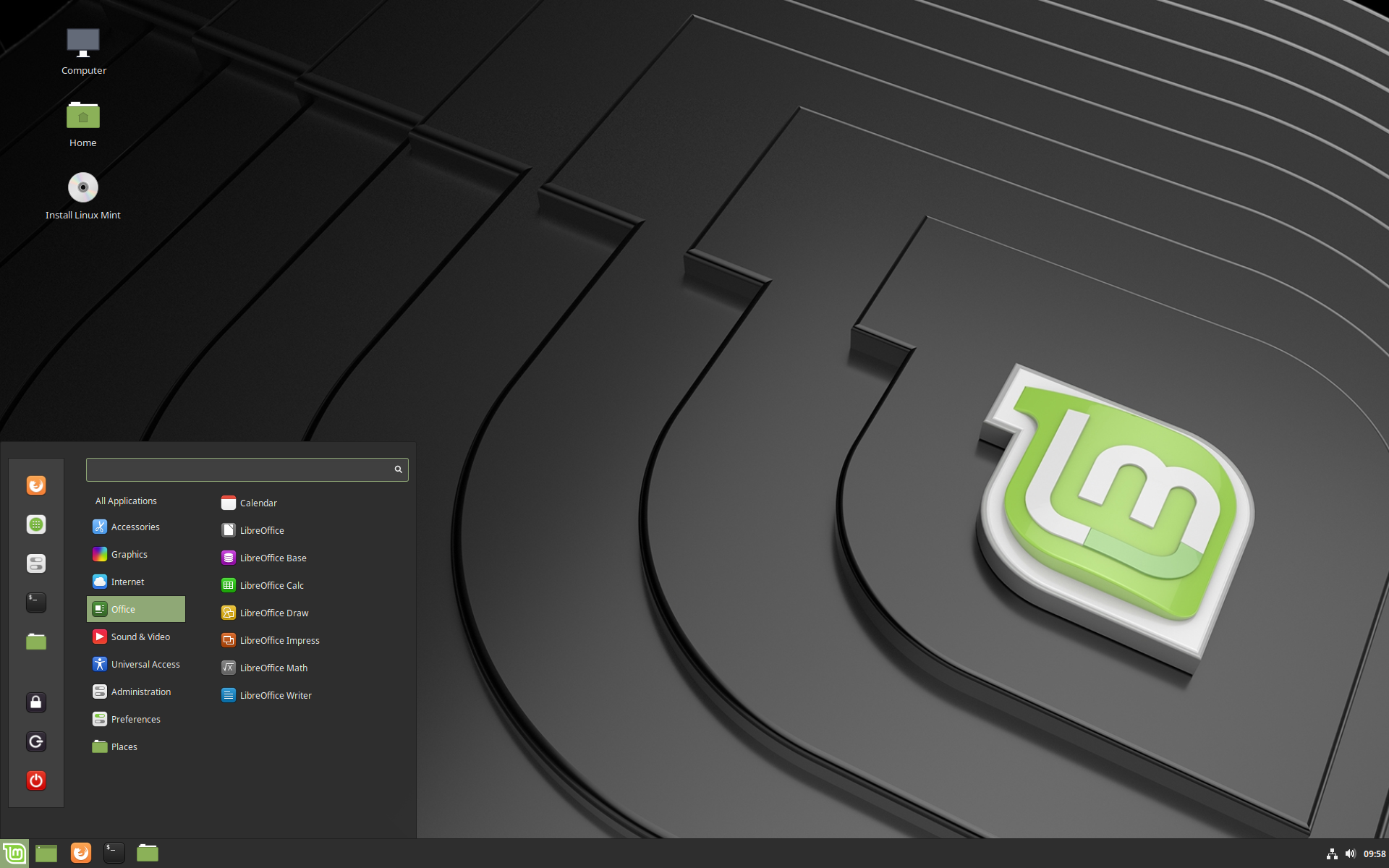
Migration Steps
Follow these steps to ensure a smooth transition from Windows 10 to Linux Mint.
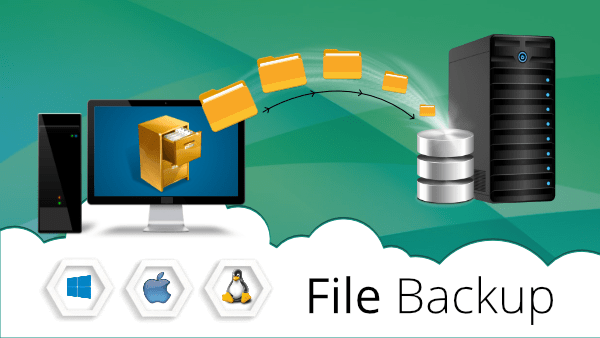
Step 1: Backup Your Files
Make sure all your important files, documents, and settings are safely backed up to an external drive or cloud service.
Step 2: Prepare Installation Media
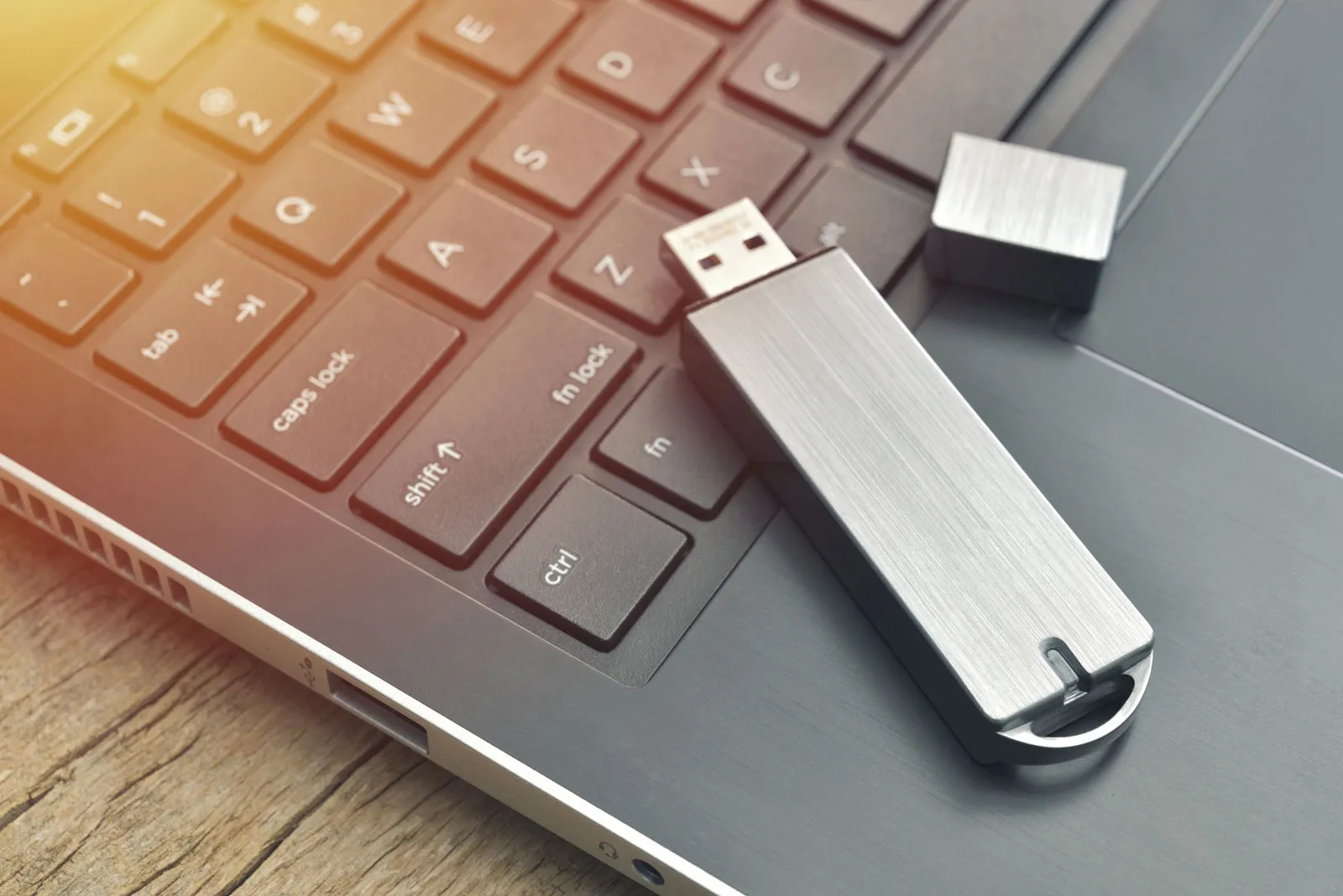
Download the latest Linux Mint ISO and create a bootable USB drive using tools like Rufus or Etcher.
Step 3: Boot and Test Linux Mint
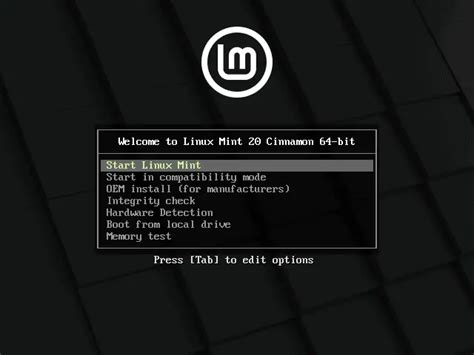
Restart your computer and boot from the USB. Try Linux Mint in live mode to ensure everything works with your hardware.
Step 4: Install Linux Mint
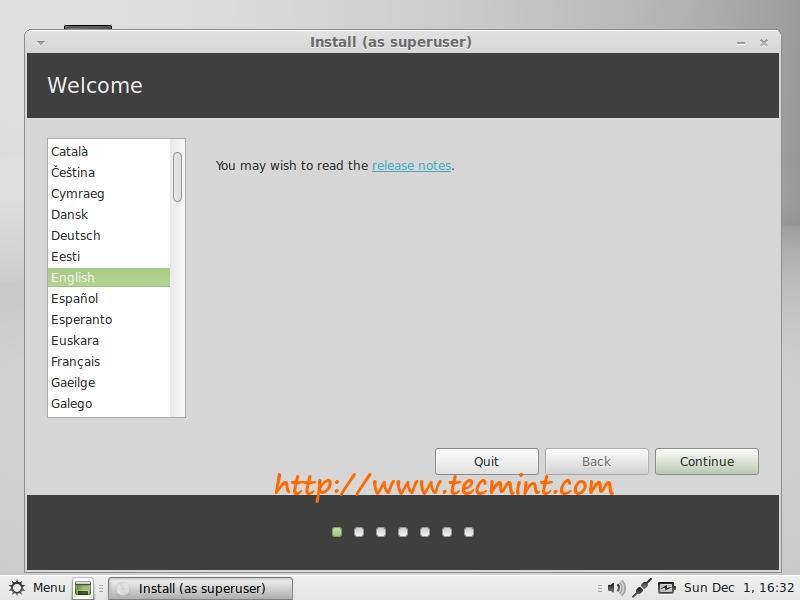
Follow the installation wizard. Carefully select your partitions and restore your backed-up files after installation.
Step 5: Enjoy Your New System
Explore Linux Mint with confidence and start using your familiar apps in a free and open-source environment.